Buttons in RCS Messages: How to Shorten the Path from a Message to a Call, Map, or Purchase
Contents:
Contents:
A customer receives a notification that an order is ready and immediately taps “Call” or “Get directions”. There is no need to copy a number or search for an address. This is how buttons in RCS messages work.
Unlike SMS, RCS for Business supports cards, images and actions.
What Are RCS Suggested Actions?
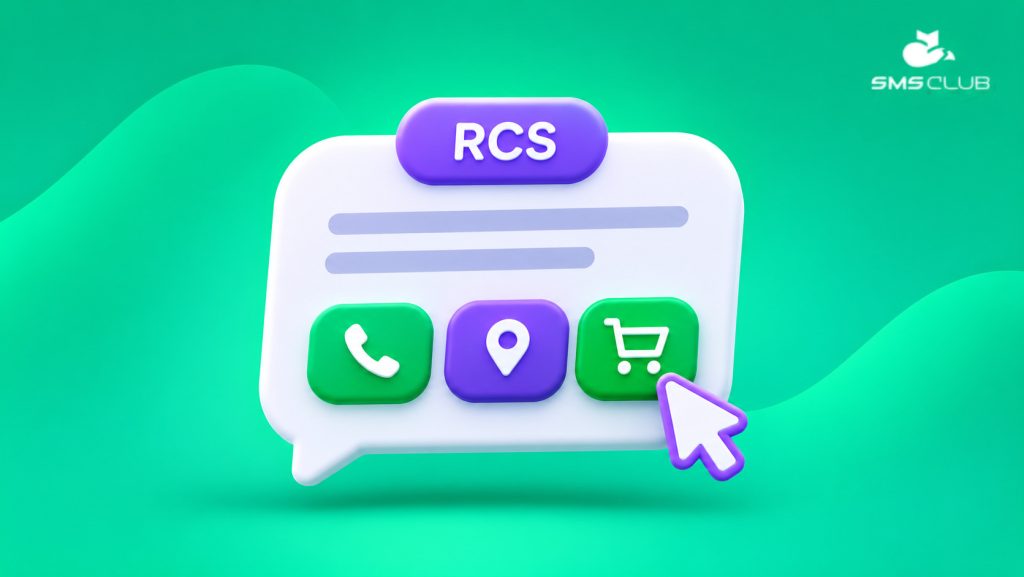
RCS Suggested Actions are predefined actions within a message. The call button opens the dialer, an address button opens a map, and a link leads to a website.
The difference is that a Suggested Action opens the required phone function, while a Suggested Reply sends a quick response to the system, for example “I confirm”. A standard link works too, but a button explains the next step more clearly.
What Actions Can You Add to an RCS Message?
The most common RCS buttons help customers:
- call the specified number;
- open the store address on a map;
- go to a product, appointment or payment page;
- add an event to the calendar;
- reply “Yes” or “Reschedule” without typing the text manually.
Purchases and bookings are usually completed on the website. The “Buy” button does not charge the customer automatically. The “Confirm appointment” button works only if the CRM receives the response and changes the status.
Examples of Buttons for Different Business Scenarios
Examples for typical messages:
- appointment reminder: “Confirm” / “Reschedule”;
- order ready: “Get directions”;
- package in transit: “Track delivery”;
- product back in stock: “View product”;
- promotion: “Shop now”;
- showroom invitation: “Address” or “Call”.
The button should match the content of the message. A customer picking up an order needs an address, not another catalogue promotion.
Include the selected service or date in the link so that the customer does not have to fill out the request again.
How to Shorten the Customer’s Path to the Desired Action
Define the main action and place it in the first button. Leave the other options for assistance or clarification.
“Learn more” is too general. “View sizes” or “Book a fitting” explains the next step more clearly. Send the customer directly to the required screen instead of the website homepage.
How to Combine Buttons with an RCS Carousel
An RCS carousel with photos and a short description is suitable for several products. Each card can have its own action: “Buy”, “Specifications” or “Ask a question”.
Up to four buttons can be added to one card, but one or two are usually enough.
For example, a store shows three sneaker models. The button opens the page of the selected model. Place the most relevant offer first and do not overload the cards with buttons.
How to Set Up and Test the Buttons
Test the buttons on different phones: the number with the country code, the address on the map, the HTTPS link, the payment process and the text on a small screen.
Add UTM tags to the links to distinguish traffic from different buttons. For quick replies, check whether the CRM receives the action and changes the request status. Also test devices without RCS support: regular SMS messages do not have buttons, so you need clear text and a short link.
For backup SMS messages, you can use SMS API. Check the availability of specific RCS features and automatic sending through the API for your integration with SMS Club. Not all devices and carriers support the same features.
How to Evaluate the Results
Start with the CTR of each button and the number of link clicks. Then check the target actions: calls, leads, bookings and purchases. Tapping “Map” does not necessarily mean that the customer visited the store, while opening the dialer does not prove that a call was completed.
Compare different button labels across similar customer groups. If “Book now” generates more confirmed visits than “Learn more”, keep the first option. The main metric is not the number of clicks but the completed action.
For quick replies, check whether the status in the CRM has changed. This confirms the appointment or booking, not just the button click.
Frequently Asked Questions
What Are RCS Suggested Actions?
These are interactive buttons in an RCS message that launch an action on the customer’s phone, such as a call or opening a website, map or calendar. They differ from quick replies, which send the customer’s text or choice to the company’s system and CRM.
What Buttons Can Be Added to an RCS Message?
You can add actions for calling, opening a link, viewing a location on a map and adding an event to the calendar. Quick replies are also available, such as “Confirm”. Purchase and booking buttons usually lead to the relevant page on the website or in the app.
Can You Add a Call Button?
Yes. RCS allows you to add a button that opens the phone dialer with the company’s number already entered. The customer does not need to copy the number manually. However, tapping the button does not prove that the call took place, so separate call analytics are required.
How Do You Add a Button with Directions to a Map?
Specify the correct coordinates or address of the location and add an action for viewing the place. After tapping the button, the customer will open the map and can start navigation. Before sending the campaign, check the address on different devices to avoid directing customers to the wrong entrance or branch.
Do RCS Buttons Work on All Phones?
No. Availability depends on the device, messaging app, carrier and RCS Business support. If the format is unavailable, use a backup SMS with a link or phone number. Regular SMS cannot display RCS cards or interactive buttons.